
How to seamlessly flow D365 ERP data into Microsoft Fabric
How to configure D365FO/dataverse with Microsoft fabric.
Written by Shoaib Ahmed Khan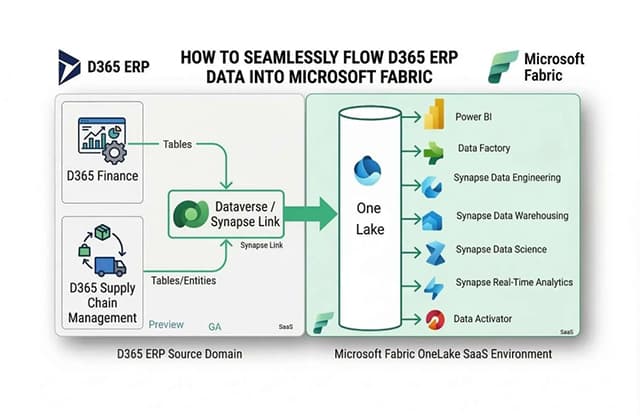
In this blog, you’ll learn about how to configure D365FO/dataverse with Microsoft fabric.
Linking to Fabric establishes a direct and secure connection between your data in Dataverse and a Fabric workspace. There’s no need to set up a storage account or Synapse workspaces. When you link to Fabric through Power Apps, the system generates an optimized replica of your data in Delta Parquet format, the native format for Fabric and OneLake. This replica is created using Dataverse storage, ensuring that your operational workloads remain unaffected. Governed and secured by Dataverse, the replica stays within the same region as your Dataverse environment while allowing Fabric workloads to operate on the data.
In Power BI, both Dataverse and F&O tables can be used to create rich, data-driven reports. Dataverse tables provide a seamless way to access data from various Microsoft applications, while F&O tables bring in financial and operational data directly from Dynamics 365. By combining these tables in Power BI, you can build comprehensive reports that integrate business data from multiple sources, enabling deeper insights and more informed decision-making.
Additionally, Finance and Operations entities can be used in Fabric as virtual entities. Virtual entities allow you to access and interact with F&O data in real-time without replicating the data into Dataverse. This ensures that you always have the most current data available for reporting and analytics in Power BI and other applications. Virtual entities offer a flexible and efficient way to work with F&O data, especially when real-time access is critical.
Here are the configuration steps:
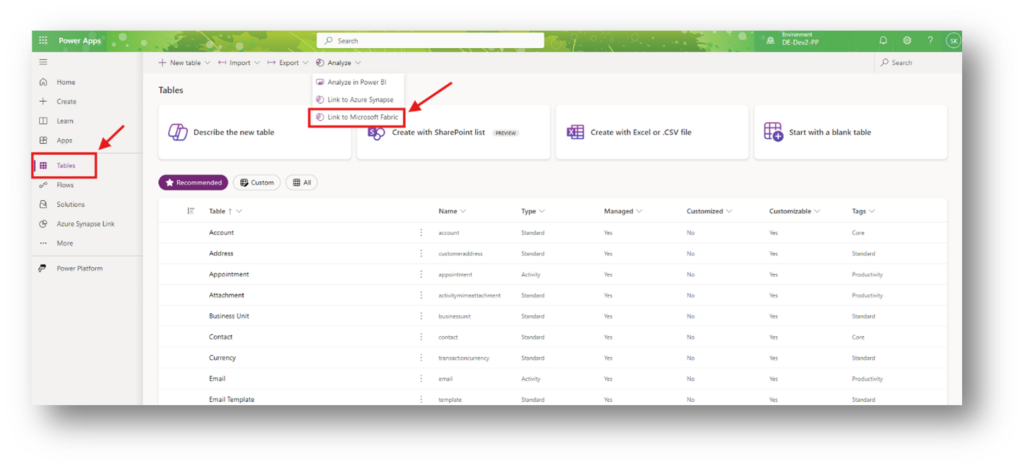
- Go to make.powerapps.com
- Click Tables -> Analyze -> Link to Microsoft Fabric
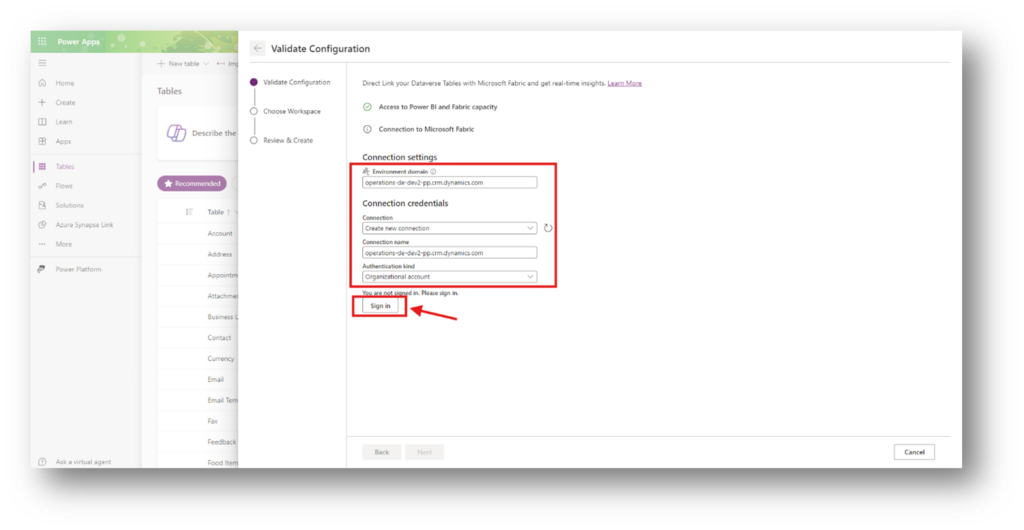
- Sign in to link Dataverse with Fabric and save connection
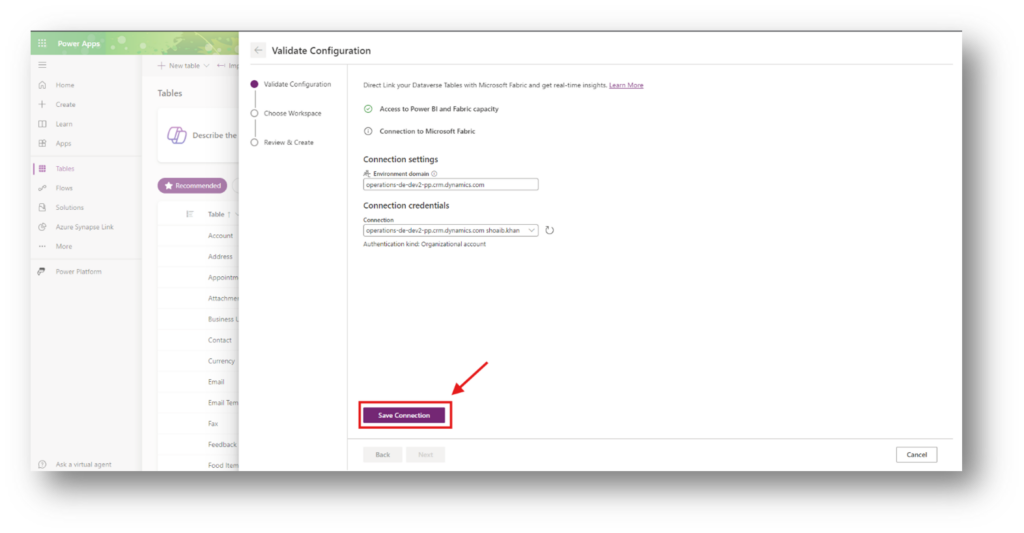
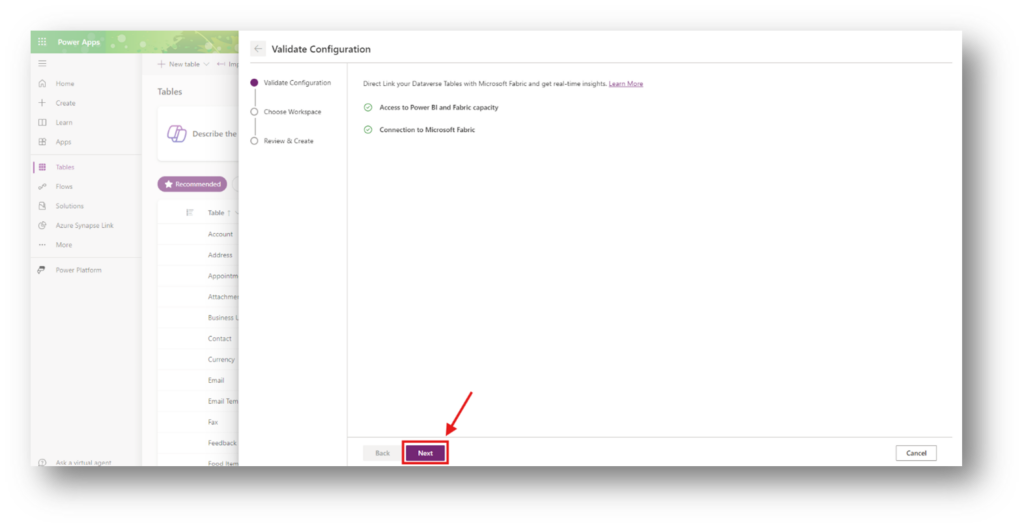
- Click Next to select or create workspace
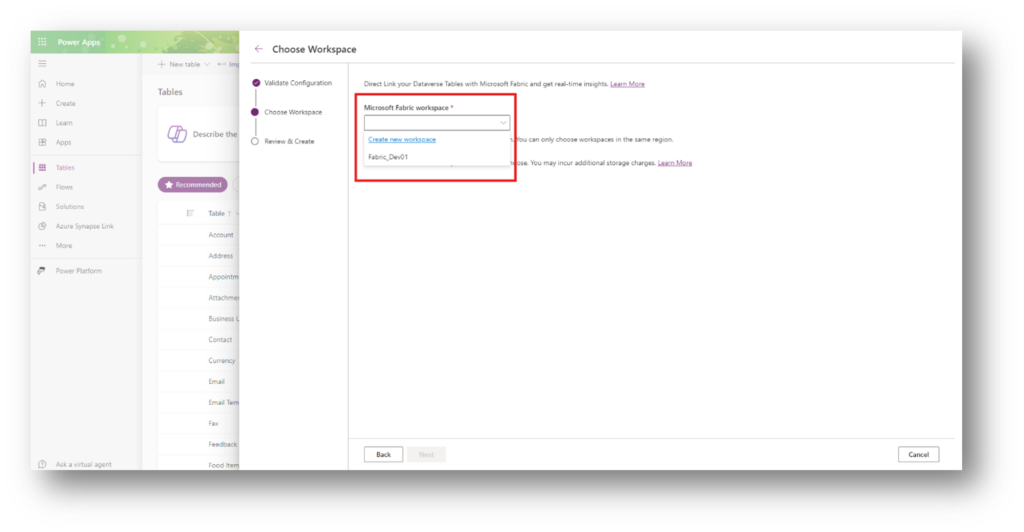
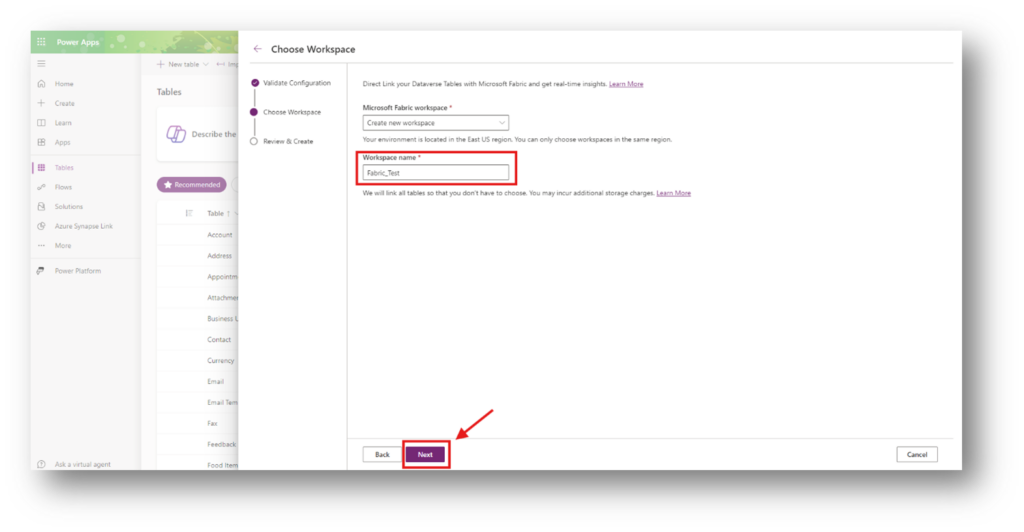
- Select existing workspace or create a new workspace
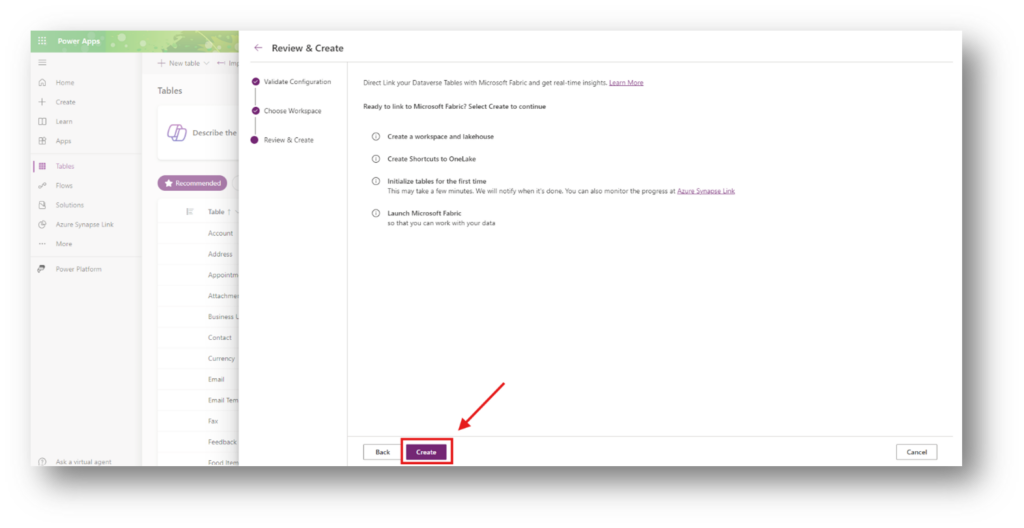
- Click Create to create shortcuts to OneLake
- Next step is to click link Azure Synapse Link -> Microsoft OneLake
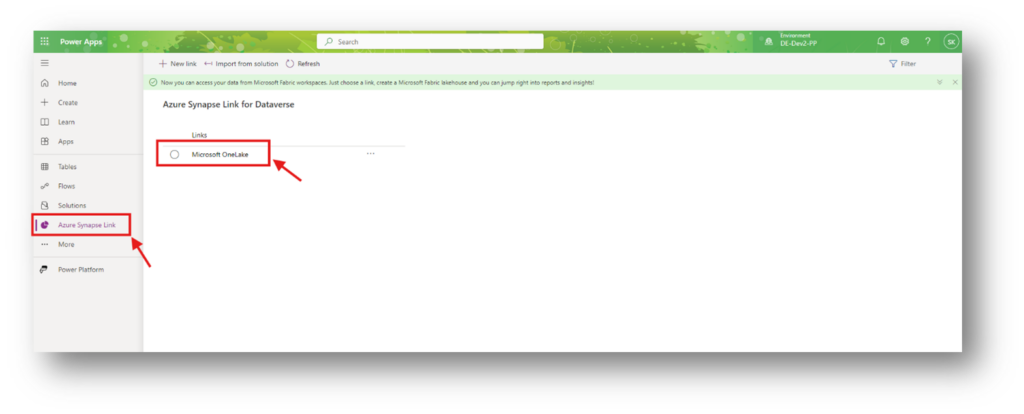
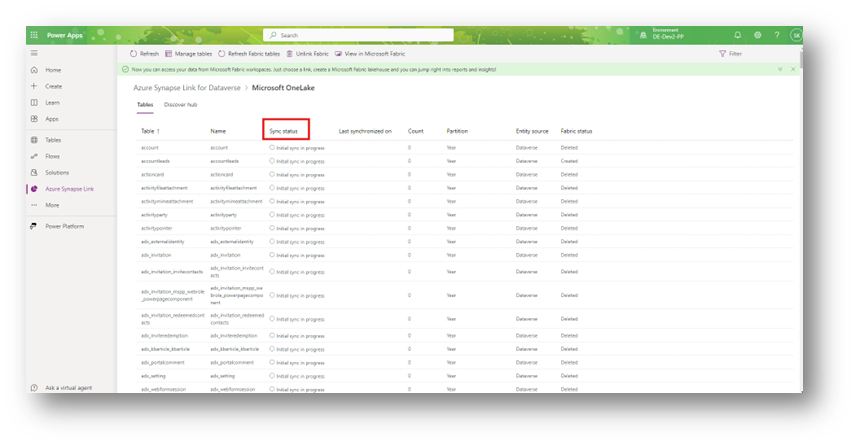
- Dataverse tables initial status Initial sync in progress. Dataverse tables take time to sync depending on the data.
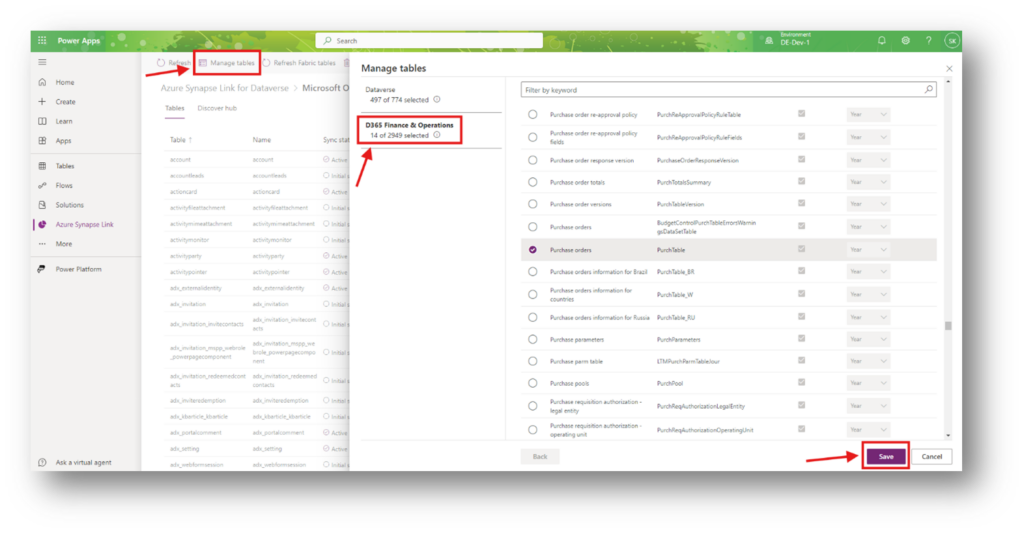
- To add Finance and Operations tables, click on Manage tables and then select D365 Finance & Operations. Select the F&O tables and click Save
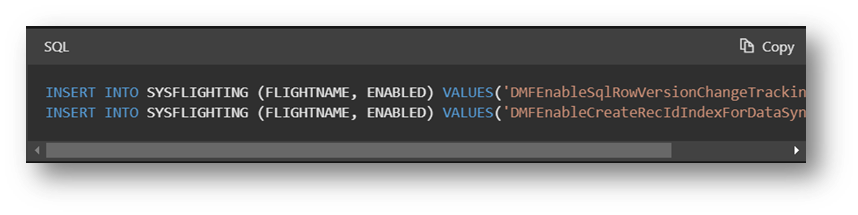
To create the necessary indexes for data synchronization, you must enable the flights DMFEnableSqlRowVersionChangeTrackingIndexing and DMFEnableCreateRecIdIndexForDataSynchronization. When these flights are activated, SQL indexes are automatically created for the RecId and SysRowVersion fields if they do not already exist. You can enable these flights by executing the respective SQL statements in Tier 1 environments. In higher environments, these indexes are generated when change tracking is enabled on a table or entity.
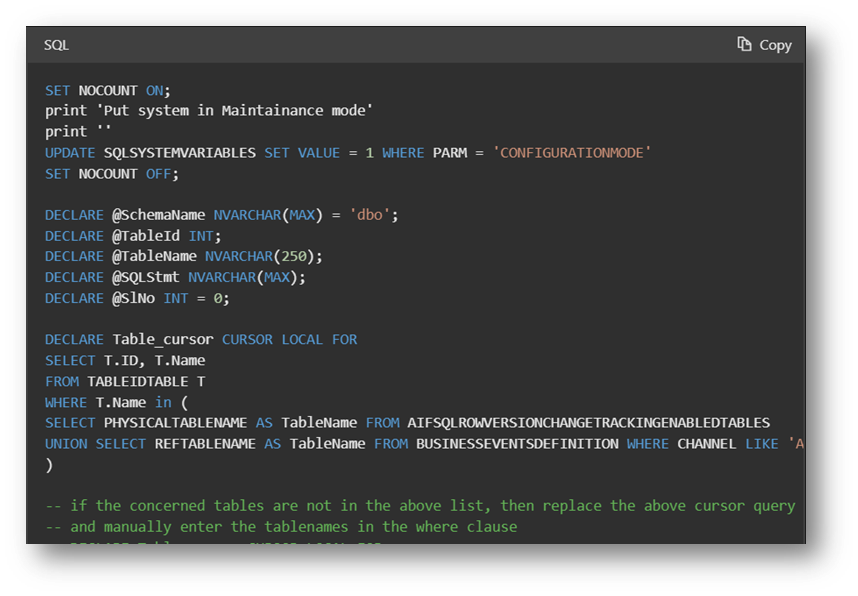
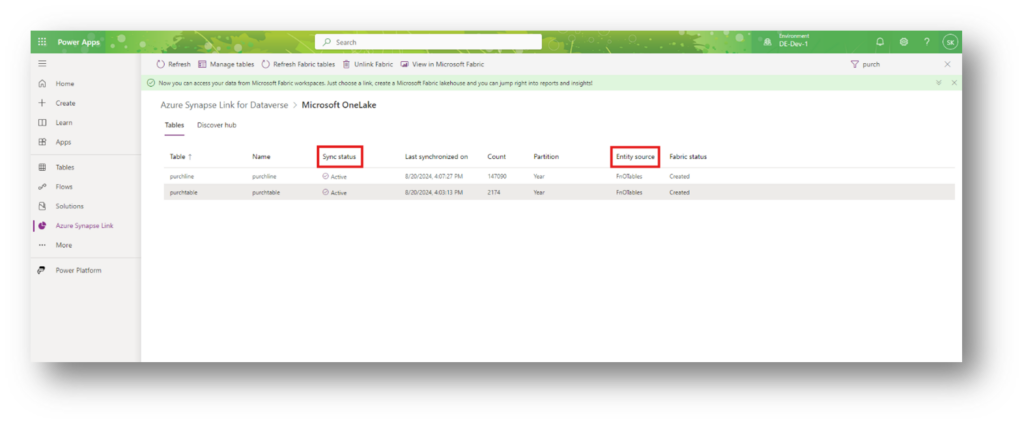
- After running the SQL script, the F&O table sync status will become active.
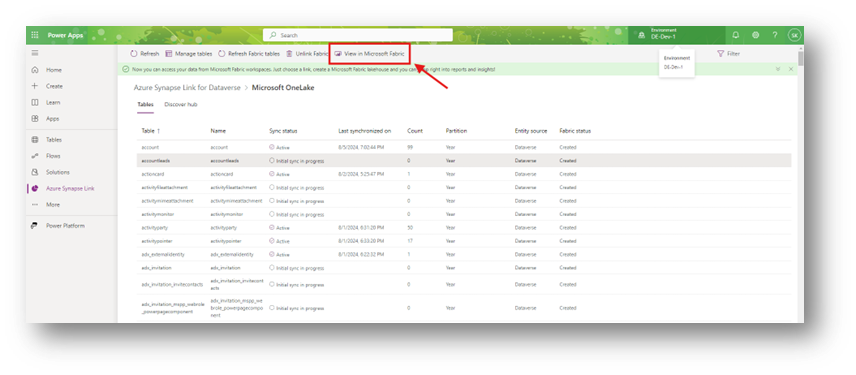
- Click View in Microsoft Fabric to open fabric workspace
- The F&O table shortcut is created in Fabric.
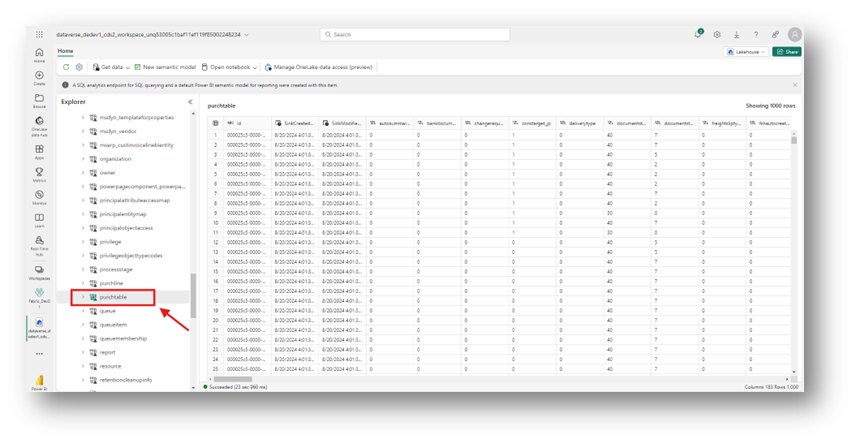
The data from the D365FO instance will be synced here. Currently, Microsoft doesn’t provide the exact SLA for data sync but it generally syncs within an hour. This time is much shorter in Tier2+ and production environments.
If you need any further assistance with setting up your data and BI platform that works with Microsoft dynamics, our dedicated and experienced Microsoft Dynamics and D&A team can help. Feel free to contact us.